
Objective


Objective: use jQuery to create a shopping cart and wish list with draggable, droppable and sortable functionality.Requirements:Download the jQuery ui files using a theme of your choice.
Download and extract the shop.html file and associated image and css files to use for this lab.
Open up the shop.html file and add the following functionality:
The page already has a link to the jQuery libraries on a CDN. Add links to the jQuery-ui minified .js file and links to the 2 jQuery-ui stylesheets (jquery css file and theme css file)
Draggable images
At the top of the page, there are a series of images (roses, mums and pansies) in a div with an id of gallery.
Select all of the images in the #gallery div and add the draggable widget
Test to see if you can now drag the images around the page.
Droppable cart and wishlist
At the bottom of the page, there are 2 divs with ids of cart and wishlist. These have a heading and a list element (ul for cart, ol for wishlist). They have been styled already with a minimum height attribute to allow room to drag in the images.
Apply the droppable method to the #cart div and to the #wishlist div.
For this application, we do not want to leave the images in the shopping cart and wishlist. Instead, we want to add a list item with the alt attribute to the list element in the div where the image is dropped.
Inside the parentheses for the draggable widget for the cart, add a drop function:
$(‘#cart’).droppable({
drop: function(e,ui) {
// add code here
}
}); // end cart droppable
Inside this anonymous function, add the code to append a list item to the #cartlist ul using the ‘alt’ attribute from the image as the text for the list item. Use ui.draggable to get the image. (ui.draggable.attr(‘alt’))
Repeat for the droppable widget for the wishlist, adding the list item to the #wishes ol.
We want the image to return to it’s old position after adding the item to the cart or wishlist. We can do this by adding revert: true to the draggable widget options for the images.
Test your code. When you drag one of the images over the cart or wishlist div and drop it, it should add the item to the list and then return the image to its original position.
Sortable cart and wishlist
Add the sortable widget to the #cartlist and #wishes divs
We want the user to be able to drag items between the #cartlist and #wishes divs, so add the connectWith: option to wishes with a value of ‘#cartlist’ and to cartlist with a value of ‘#wishes’.
Test your code. It should sort the items properly and move them from cart to wishlist or wishlist to cart, but you will see that it also creates an ‘undefined’ item in the list each time. This is caused by our droppable function that tries to add the

  • when we drop an item in the drop zone.
    To fix this problem, we need to make changes to our drop functions in the droppable widget as follows:
    Add an if statement above the append statement to test if the draggable item has an ‘alt’ attribute. If so, then append the list item using the code we created previously.
    // test to see if the draggable item has an alt attribute
    if (ui.draggable.attr(‘alt’)) {
    // if it has an alt attribute, append the alt text inside of an li tag as before (move the previously created line into the if brackets)
    $(‘#cartlist’).append(“
  • “+ui.draggable.attr(‘alt’)+””);
    }
    Now add an else statement to append a list item to the list with the html of the draggable item as the text instead of the alt attribute:
    else {
    // if no alt attribute, add a list item using the html from the draggable item as the list item text
    $(‘#cartlist’).append(“
  • “+ui.draggable.html()+” li>”);
    }
    Test again and you will see that you no longer get the undefined lines. However, it is keeping both the original list item and the dropped list item. So we need to add a second line in our else clause to remove the original item: ui.draggable.remove();
    Test on more time and it should work as expected.
    Add an effect to an element of your choice on the page
  • digital forensics

     Consider the types of digital technology advances that exist and how they might have gone awry.  In 300 – 450 words identify some types digital technology that may have gone awry and how they affect your life. 

    SWOT (Abstract & intro) 3+ page

    For attached KFC organization (), Conduct SWOT analysis and discuss the components (Strengths, Weaknesses,Opportunities,Threats)

    For this assignment need below:

    Abstract (75-100 words):  on a separate page

    Introduction: 1 page

    Overview of the organization:2+ page

     * Identify the type of business organization and strategies

     * Key players

     * Competitors

     * Organizational Structure

     * Organizational Strategy (low cost; differentiation; etc.)

    Discussion


    Please read chapter-1 I posted. There is one question from each chapter. Please write your answers about one page.

    H8

     Download and read the document and answer all questions in the document. Please see attached document H8 & APA Criteria doc.    

    Database Security


    (8)

    Write at least 450 words discussing the reasons for the two new auditing roles in Oracle 12c. Why did Oracle consider them necessary? What problems do they solve? How do they benefit companies? 

    Do not copy without providing proper attribution. 

    Use the five paragraph format. Each paragraph must have at least five sentences. Include 3 quotes with quotation marks and cited in-line and in a list of references. Include an interesting meaninful title.

    Include at least one quote from each of 3 different articles. 

    (9)

    Describe in 450 words the disaster recovery plan and who is responsible  at your place of employment. Consider the critical business functions and your recovery point objectives and recovery time objectives.

    Use at least three sources.

    (10)

    Write at least 450 words discussing the Safe Harbor provisions under HIPAA.  

    Do not copy without providing proper attribution. 

    Use the five paragraph format. Each paragraph must have at least five sentences. Include 3 quotes with quotation marks and cited in-line and in a list of references. Include an interesting meaninful title.

    Include at least one quote from each of 3 different articles. 

    (11)

    In 450 words or more, explain PCI compliance to the database administrator at a large retailer. Consider the consequences for non-compliance. 

    Use at least three sources. Include at least 3 quotes from your sources enclosed in quotation marks and cited in-line by reference to your reference list.  Example: “words you copied” (citation) These quotes should be one full sentence not altered or paraphrased. Cite your sources using APA format. 

    Access control w4discussion

     Assignment Requirements

    Read the worksheet named “Mapping Business Challenges to Types of Control” and address the following:

    Question

    Using what you have learned about access controls, identify the business impact of the challenge, and identify an access control method that will mitigate the impact to the business.

    Instructions:

    Initial post with 250-300 words

    two peer reply post with  100-150 words.

    please assignment should be in proper APA format

    references should be properly cited.

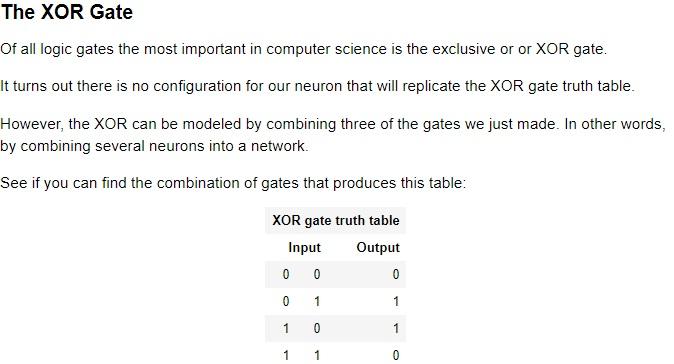
    The XOR Gate Of all logic gates the most important in computer science is the exclusive or or XOR gate. It turns out there is

    XOR gate exercise using Jupiter notebook

    Create jupyter notebook file: Intro_NN_XORGATE.ipynb

    The XOR Gate Of all logic gates the most important in computer science is the exclusive or or XOR gate. It turns out there is

    ****Exercise****

    # Uncomment the xor_gate line and find out which neurons besides the or_gate neuron the
    # network should have in its hidden and output layer to produce the right values.

    in[]class Network():
    def __init__(self, gate1, gate2, out_gate):
    self.hidden_neuron1 = gate1
    self.hidden_neuron2 = gate2
    self.out_neuron = out_gate
    def activate(self, x1, x2):
    z1 = self.hidden_neuron1.activate(x1, x2)
    z2 = self.hidden_neuron2.activate(x1, x2)
    return self.out_neuron.activate(z1, z2)
    #xor_gate = Network(…, …, and_gate)
    make_truth_table(xor_gate)

    ****Exercise****

    # Finish this version of an XOR gate that more closely resembles a neural network by determining the shapes the #weights and biases need to have.

    #W1 = np.array(…)
    #b1 = np.array(…)

    #W2 = np.array(…)
    #b2 = np.array(…)

    in[?]hidden_layer = Layer(W1, b1)
    output_layer = Layer(W2, b2)

    in[]class Network():
    def __init__(self, hidden, output):
    self.hidden = hidden
    self.output = output
    def activate(self, X):
    z = self.hidden.activate(X)
    return self.output.activate(z)

    xor_gate = Network(hidden_layer, output_layer)

    xor_output = xor_gate.activate(X)
    np.round(xor_output)

    Exp19_Excel_Ch08_Cap_Golden_State_5K


    Exp19_Excel_Ch08_Cap_Golden_State_5K


    Exp19_Excel_Ch08_Cap_Golden_State_5K

    Project Description:

    You are a volunteer for the Golden State 5k, an annual 5k held across several cities in California to raise money for at risk youth. As part of your duties, you track donations, volunteer information, and race results. This year you have decided to use Excel to calculate frequency distribution by age and time, calculate various descriptive statistics, and forecast participation rate as well as donation rate for 2025.


    Start   Excel. Download and open the file named Exp19_Excel_Ch08_Cap_GoldenState5k.xlsx. Grader has automatically added   your last name to the beginning of the filename.


    Ensure the RaceResults worksheet   is active, then use the FREQUENCY function to calculate the frequency   distribution of the race results in column D. Place your results in the range   G4:G9.


    Enter a function in cell F22 to   calculate the correlation between age (Columns C) and race time (Column D).


    Enter a function in cell G22 to   calculate the covariance between age and race time. 


    Enter a function in cell H22 to   calculate the variance of the ages in the data set. Note this is a sample of   data not a population.


    Enter a function in cell I22 to   calculate the standard deviation of the ages in the data set.


    Ensure the Data Analysis ToolPak   add-in is active. Use the Data Analysis ToolPak to create a histogram with   chart output starting in cell H12 based on the ages of the runners surveyed.   Use the range F13:F18 as the Bin Range. Ensure that Chart output and   Cumulative percentage is included in the results. Place the upper left hand   corner of the chart in cell L13.


    Ensure the VolunteerInfo   worksheet is active. Use the Data Analysis ToolPak to perform a single factor   ANOVA on the range C5:E21 (Including column lables). Place the results   starting in cell G5. 


    Create a Forecast Sheet that   depicts year over year growth in participation for the city of Los Angeles.   Set the Forecast end year as 2025 and place the results on a new worksheet named 2025Forecast.


    Ensure the Participants   worksheet is active then create a scatter plot chart that places the   Participant observations on the X axis and the Donation dollars on the Y axis   (do not include column headings). Add the chart title Participant   Forecast and a   linear trendline to the chart that also shows the Equation and the R-square.


    Enter a function in cell F6 to   calculate the intercept of the linear trendline created in the prior step.


    Enter a function in cell G6 to   calculate the Slope of the linear trendline.


    Enter a function in cell H6 to   calculate the R-square of the linear trendline.


    Enter a function in cell I6 to   calculate the Standard Error. 


    Use the FORECAST.LINEAR function   in cell F9 to forecast potential donations once the goal of 20,000   participants is reached. Format the results as Currency.


    Complete your analysis by adding   formulas in the range G9:H9 to calculate the high and low thresholds of the   forecast.


    Save and close EXP19_Excel_Ch08_CAP_GoldenState5k.   Exit Excel. Submit the file as directed.